A private beta for iPad and Apple Pencil
An iPad canvas for thinking by hand. Write with Apple Pencil, circle anything, and the AI answers on the board, beside your work. It points at the exact spot, and it asks before it tells.
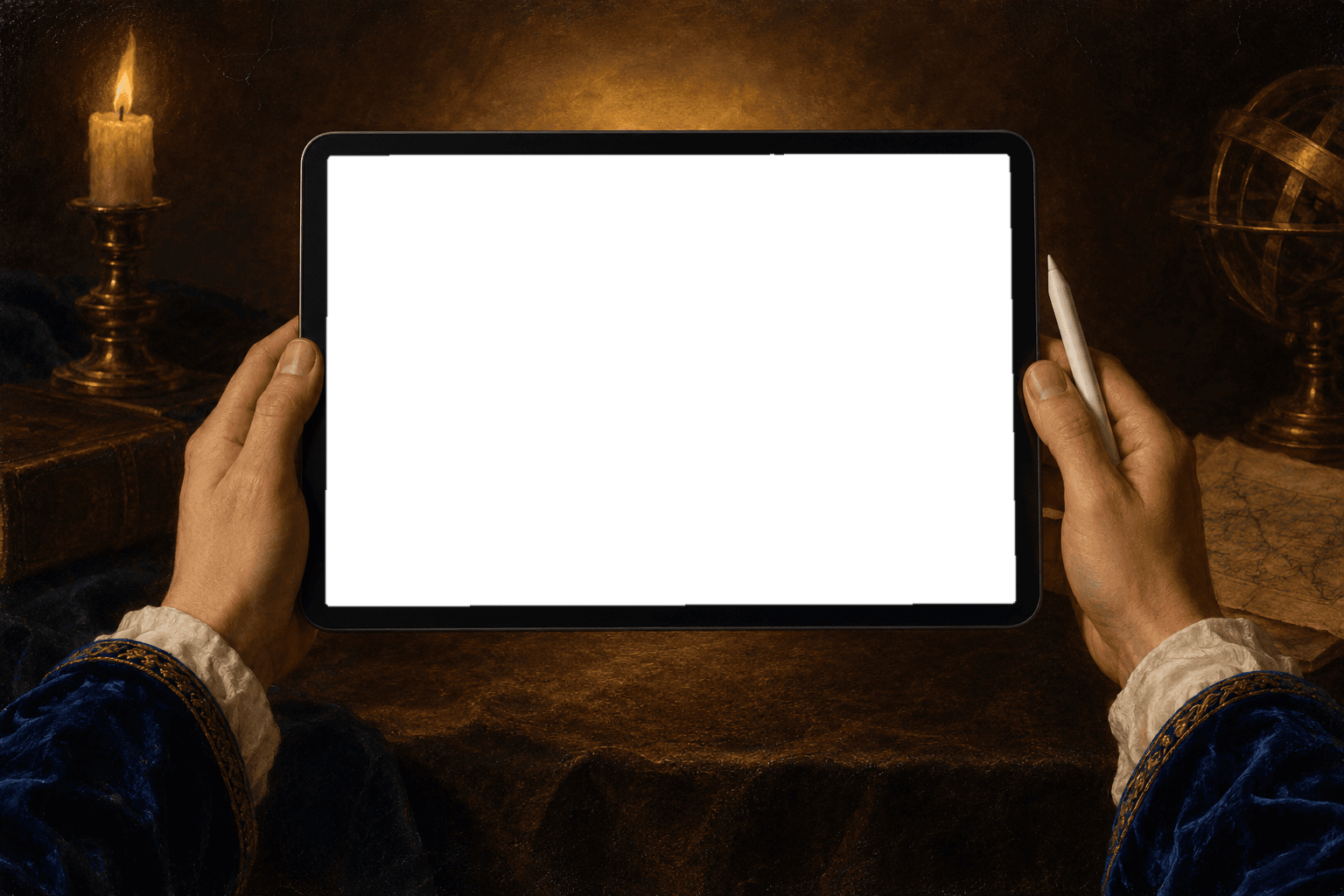
Salle I The argument
Why we’re building Louvre
Most AI lives in a chat box. You type, it answers, and the thinking happens somewhere you can’t see.
But nobody thinks in a chat box. We think on paper: arrows, crossings‑out, a diagram half drawn.
So we gave the AI a pen and put it on the page. It looks at your work, points at the spot, and asks before it tells. You still hold the pen.
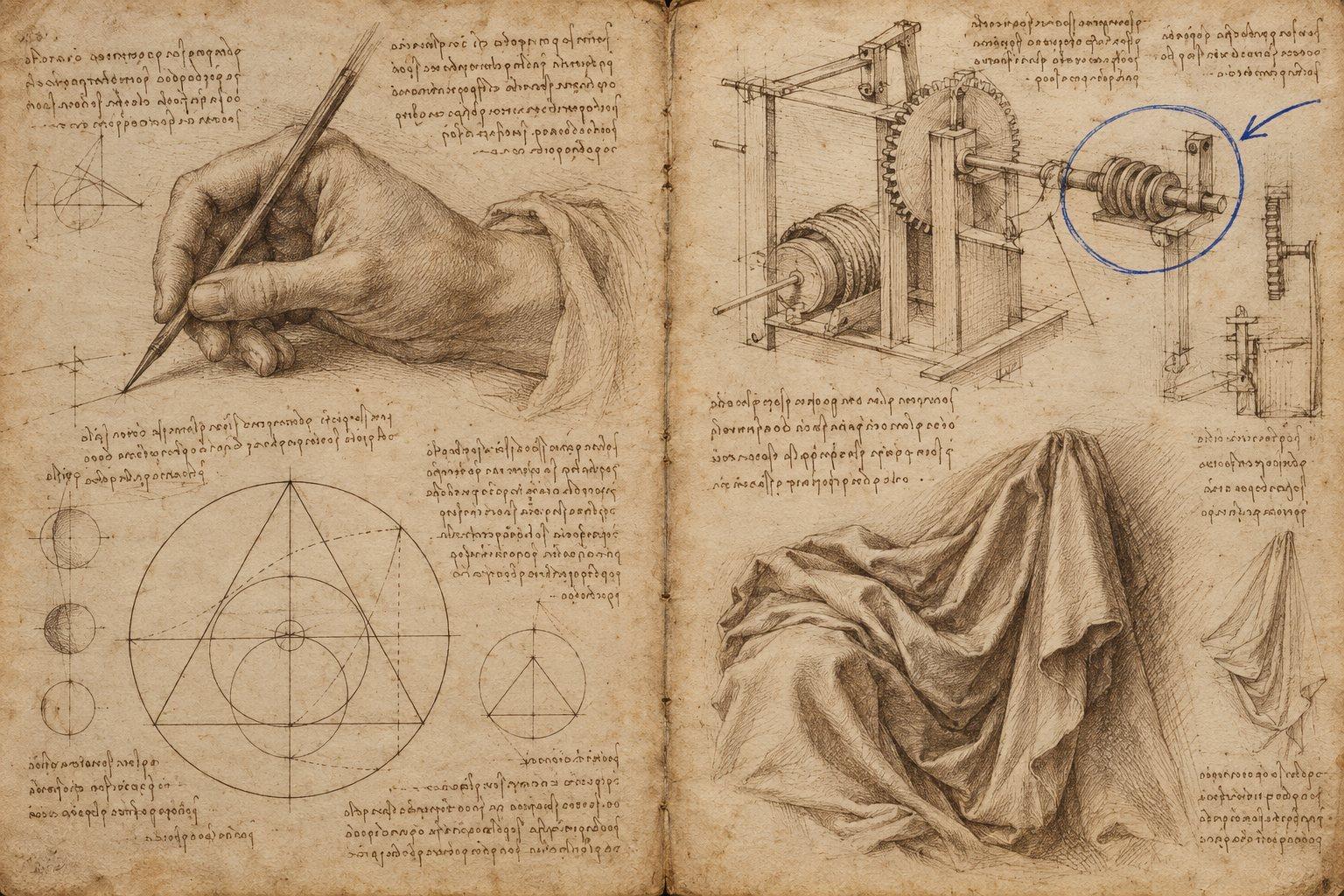
Salle II The method
No prompt box. The board is the conversation.
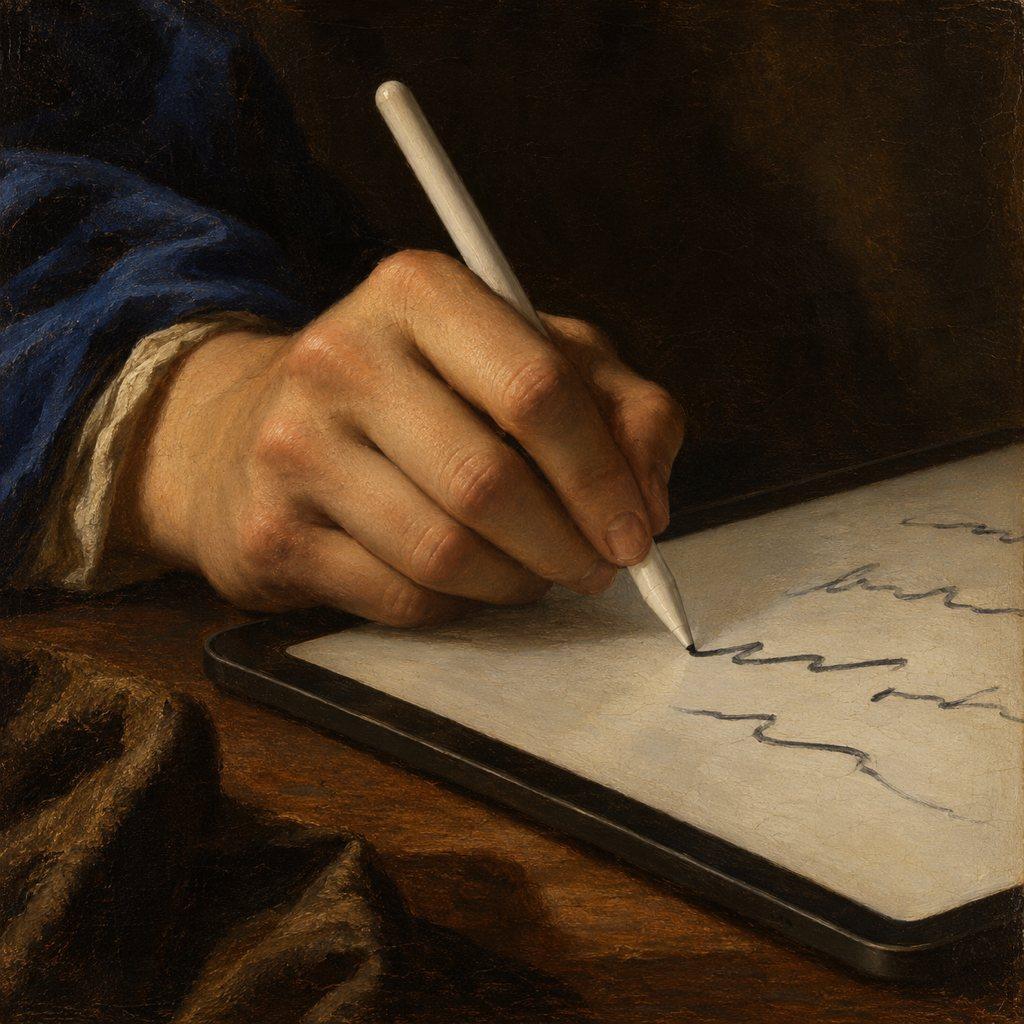 Plate I
Write as you would on paper.
Apple Pencil writes the moment it touches the glass, with Apple’s pens, ruler, lasso and eraser. Notes, shapes, arrows, photos and PDF pages sit around your ink.
The hand. Graphite on glass.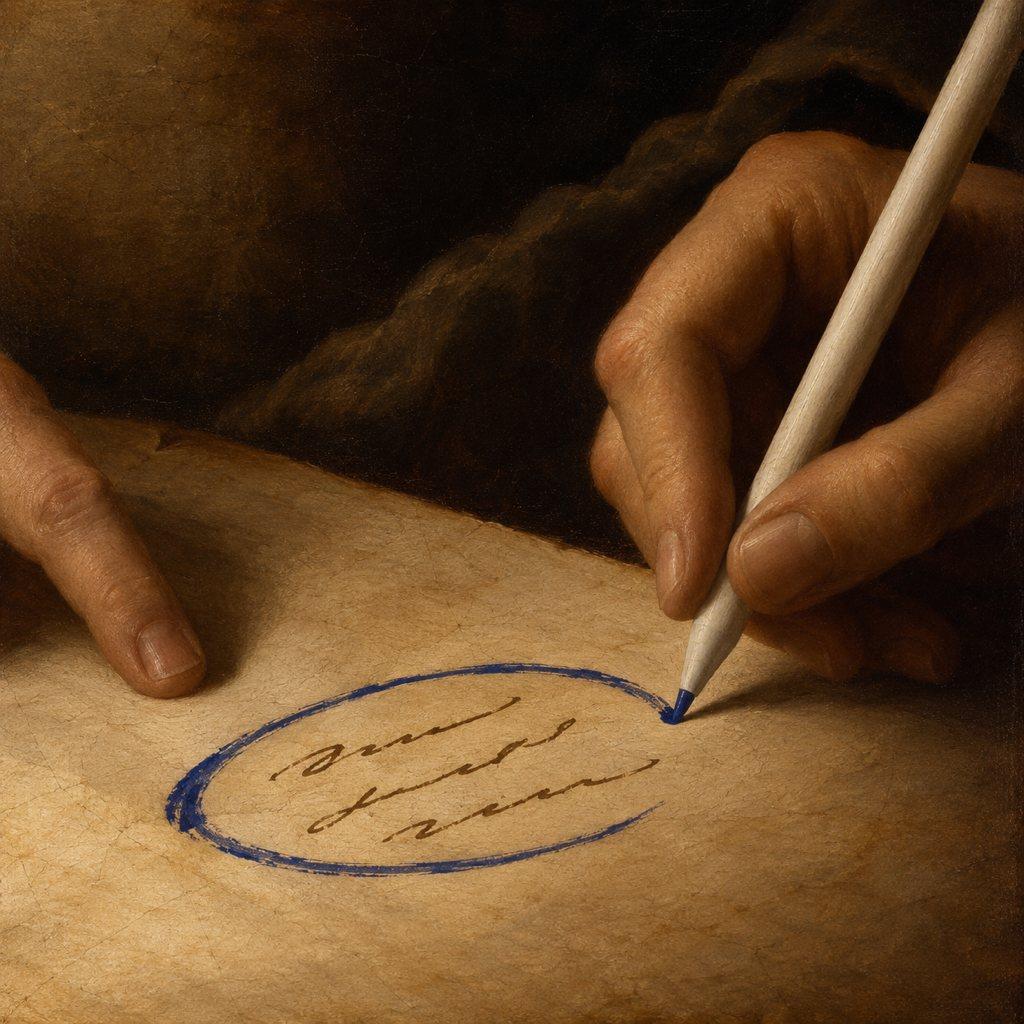 Plate II
Circle what you’re stuck on.
Circle an area and tap Explain, Check My Work, Hint, What’s Missing?, Diagram or Transcribe. Or write the question on the board in your own hand, and send.
The question. Ultramarine loop on sepia.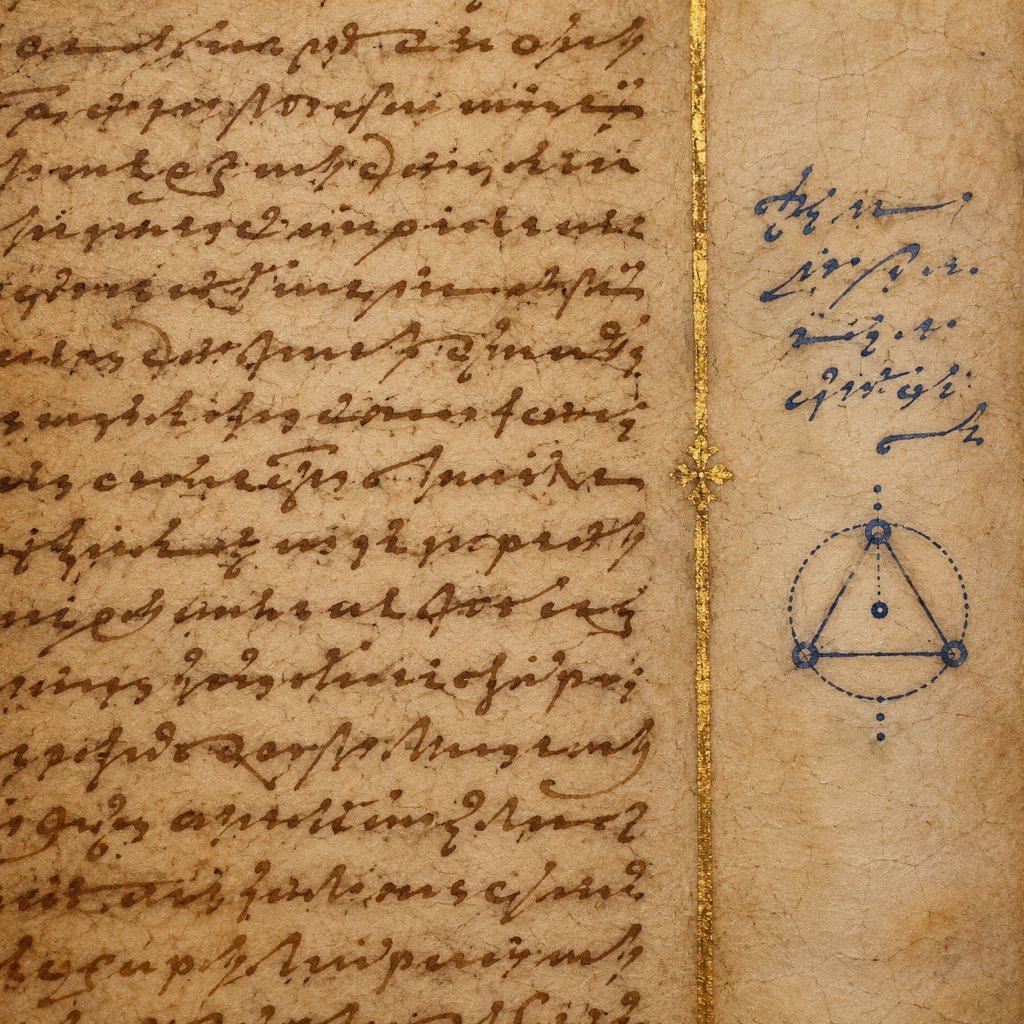 Plate III
The answer arrives in the margin.
It streams into a card beside what you wrote and marks the exact spot it means. When it finishes, it becomes ordinary notes you can edit, each marked ✦ AI.
The margin. Ultramarine and gold leaf.- Coda
Changed your mind?
- Stop
- works at any moment, and leaves the board as it was.
- Follow Up
- continues with suggestions like Go Deeper or Simpler.
- Remove
- takes the answer out and keeps everything you did after it.
Salle III The companions · Live AI
A second pair of eyes while you write.
Turn on Live AI and keep going. When you pause, the AI looks at what you just wrote and may leave a short note in the margin, pointing at the spot. Keep a note and it joins your board. Dismiss it and it’s gone.
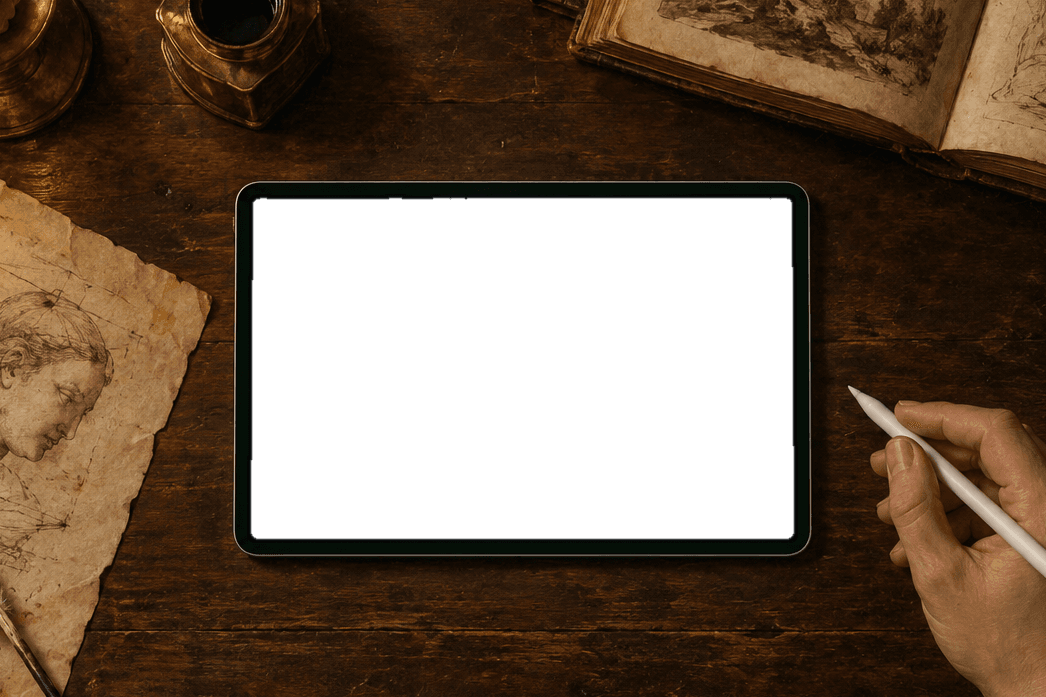
- 2.5 safter you stop writing. It waits for a pause.
- 8 sat least, between looks. It won’t nag.
- 1 areais all it sends: around your newest strokes, not your whole board.
Salle IV The principles
Made to make you think more, not less.
Chat tools are judged by how much they produce. We judge Louvre by whether you thought better. These are the principles the AI follows on your board.

Your ink leads.
A board starts blank and yours. The AI responds to what you write. It never fills a board before you start.

Questions before answers.
On an open problem the first move is a hint, a counter‑example or a sharper question. The full answer is a tap away, never volunteered first.
Nothing is written over.
AI work goes beside yours, in free space. Your work stays where you wrote it, mistakes included, so you can see what changed your mind.
Every mark is signed.
AI work is drawn in its own color and carries a ✦ AI badge. Remove one and it comes out in a single step, keeping everything you did after it.

You can always interrupt.
Keep drawing while it answers. Press Stop mid‑sentence and the board is left exactly as it was.

Your key, your iPad.
Boards live on your device. Requests go straight from the app to the model provider with your own key, kept in the iOS Keychain.
Salle V Works in progress
Early, and painting in the open.
On the wallIn the private beta today
- Apple Pencil ink, with Apple’s pens, ruler, lasso and eraser
- Notes, text, shapes and connectors, with one undo history
- Photos and PDF pages as references
- Ask AI: one‑tap actions, streamed answers, marks on your work
- Live AI with Coach, Critic and Scribe
- PNG and PDF export, plus an editable .whiteboard backup
On the easelNext
- Hosted AI, so you don’t need your own key
- More providers, and Apple’s on‑device model
- Interactive pieces on the board, starting with an editable comparison table
In the sketchbookLater
- Shared boards, for people and the AI assistants they work with
- Sync across devices, and a web viewer
- Connect the AI assistant you already use on your Mac

By invitation
Request an invite to the private view.
We’re letting people into the private beta on TestFlight in small groups, so we can watch how it’s used and fix what’s rough. Tell us what you’d use it for.
Questions from the gallery
Questions, before answers.
Anything else? Write to hello@louvreai.app. A person reads every letter.
What do I need?
An iPad on iPadOS 18 or later. Apple Pencil is recommended: fingers work too, but Louvre is built around the pencil.
Which AI does it use?
The private beta uses OpenAI models with your own API key, and you pick separate models for questions and for Live. More providers, and a hosted option that needs no key, are next.
What gets sent to the model?
Only the area you select, or with Live AI the area around your newest strokes, plus up to two references you choose to include. You see the exact preview before you send. Your boards stay on your iPad.
Can I use it without AI?
Yes. Drawing, notes, PDFs, export and backup all work offline, with no key and no account.
What does it cost?
The private beta is free. With your own key you pay the provider for what you use. Live uses a fast, low‑cost model by default and looks at most once every eight seconds.
Android, Mac or web?
Not yet. We started on iPad because the pencil is the point. A web viewer for shared boards is on the list.